When you hire someone on day one, you give them access to the one drawer they need, tell them to ask before doing anything irreversible, and watch the first few tasks. That is how you both learn what they can handle.
Codex works the same way, and the app is built around that idea. This lesson is the day-one setup: what it can touch, which model runs it, and how to keep the leash short until you trust it.
Codex, in plain language
Codex is the coding agent inside the ChatGPT desktop app. You reach it through that Chat / Work / Codex mode picker from the last lesson.
Its real skill is working with files in a folder you point it at. It can read them, change them, create new ones, and run commands like tests or cleanups. It does the same job across a few places, the desktop app, a command-line tool, an editor extension, the web, and the cloud, but for this course we live entirely in the desktop app. One surface, no juggling.
Codex handles the coding part. You brief and review. The folder can hold notes, drafts, a spreadsheet export, or a software project.
Picking a model without the alphabet soup
Open the model control beneath the composer. The compact view shows the current model and how hard it is set to think. Choose Advanced, then Model, if you want to see the available list. Here is the honest version of what the names mean, so you can pick one in five seconds and move on. OpenAI keeps the current list in its model guide if your menu looks different from this lesson.
The current family is GPT-5.6. Your menu may show only the models available on your plan and surface:
- 5.6 Sol is the flagship. Strongest at hard, multi-step work. This is the default, and for this whole course you can just leave it there.
- 5.6 Terra is the balanced everyday option, tuned to cost a little less while staying strong.
- 5.6 Luna is the fast, cheap one for lighter tasks.
You may also see older or additional models. They exist for people with a specific reason to reach back or optimize for a particular job. You do not have that reason yet. Ignore them.
My advice: leave it on the default and forget the picker exists. You will learn far more by watching how a task goes than by swapping models. If you are ever curious later, Terra is the sensible "save a bit" choice for simple chores.
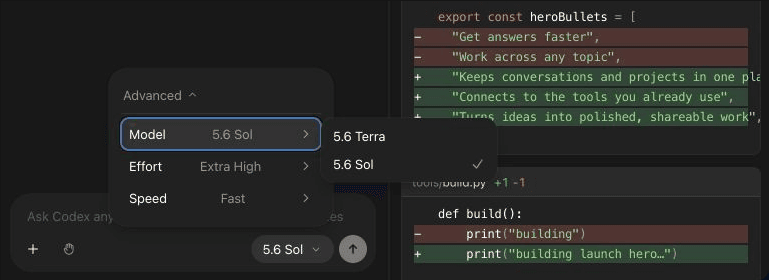
Open Advanced, then Model, to reach this list. This official OpenAI view shows Sol and Terra. If your list differs, leave the recommended default selected and keep going.
Permission controls are keys you hand an employee
This is the part that lets you actually relax, so it is worth slowing down for.
When Codex runs commands on your computer, it does so inside a sandbox, a walled-off space with rules about what it may touch. The folder you opened gives the task a working boundary. The permission control beneath the composer decides when Codex must stop and ask you before it reaches farther.
- Ask for approval. Codex asks before editing files outside the folder or using the internet. This is the right choice for the course.
- Approve for me. Codex asks only when an action is detected as potentially unsafe. Save this for later, after you know what normal work looks like.
- Full access. Codex gets unrestricted access to the internet and files on your computer. This is the master key, and you do not need it here.
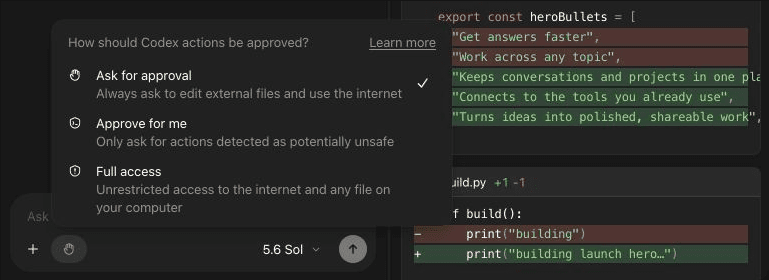
For everything in this course, keep Ask for approval selected. Apps, the browser, Computer Use, cloud work, and instructions inside your brief use separate controls.
Set the controls for your first task
Go back to the empty Codex task you opened in the last lesson and check these three things:
- Folder: Confirm the folder name at the top is the small folder you chose. If it is wrong, use Open to choose the right one.
- Permissions: Open the permission control beneath the composer. Choose Ask for approval. That lets Codex work inside the selected folder while stopping before it reaches farther.
- Model: Open the model control beside it. Leave the recommended default selected. You do not need to optimize this choice for your first task.
The composer is where your brief goes. The activity area above it shows what Codex is doing. The changes panel gives you a review surface when files change.
Goals, and when to use them
You will notice a feature called Goal mode, run with a /goal command. It lets Codex hold a longer objective and work on its own for hours toward it, with controls to pause, resume, or clear the goal.
It is real and it is useful. Module 1 stays with short tasks you watch start to finish. Long autonomous runs come after you build trust.
But the idea underneath a goal is worth stealing today, even for a small task. A good goal is three things: what you want done, how you will know it worked, and any limits it must respect. That is exactly the shape of a good brief, which is the entire subject of Module 2. So every time you delegate, even a two-minute chore, try to say those three parts out loud.
Next lesson is the fun one. You pick a real chore you have been putting off, hand it to Codex, and watch it get done. Ten minutes, start to finish.